 Disjoncto


Settings and account
Settings
The gear on the home screen opens the Settings screen. Every choice applies immediately and stays saved on the device.
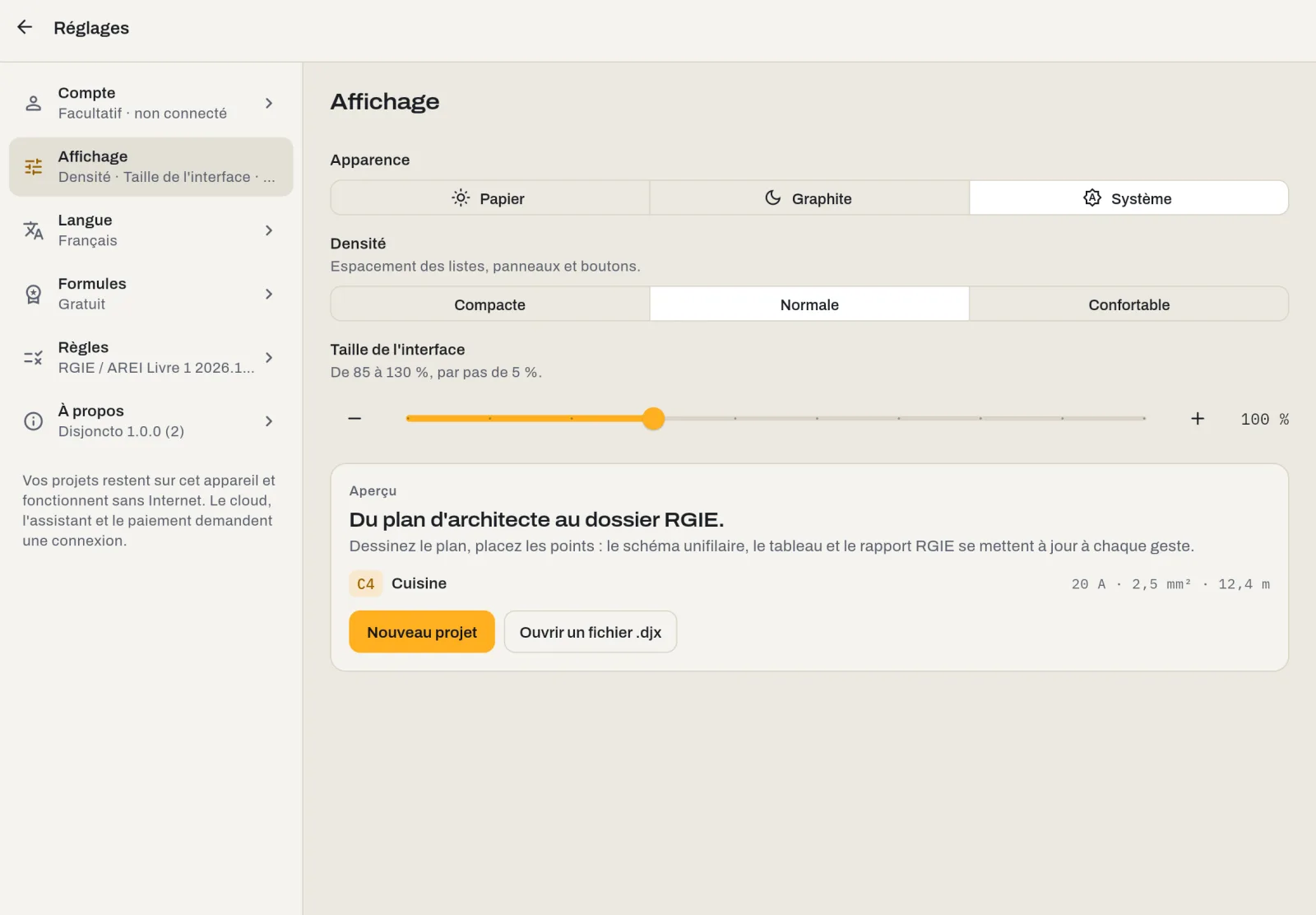
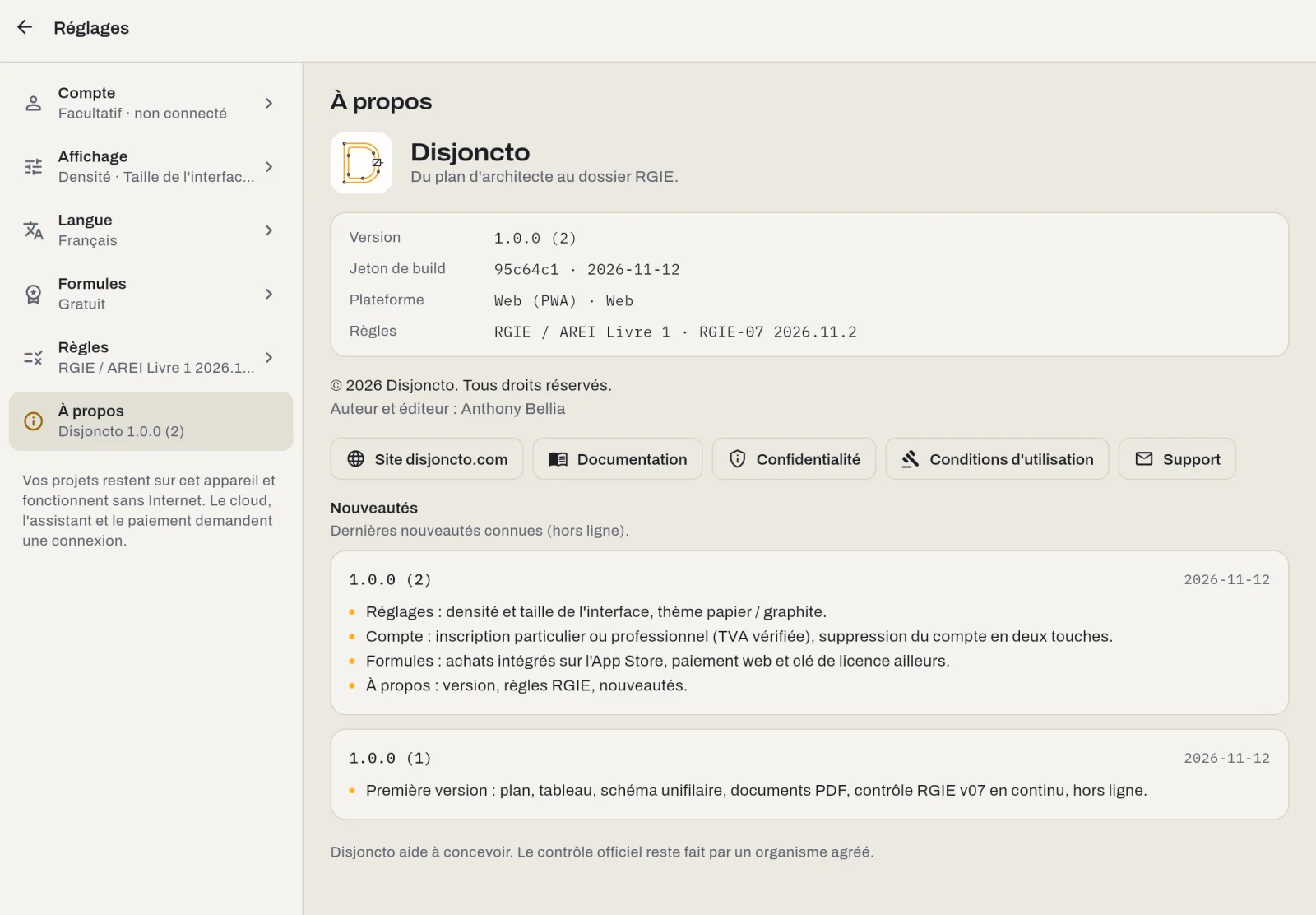
The screen is organised into sections: Account, Display, Language, Plans, Rules and About. On iPad and Mac, the sections are listed on the left and their content is shown on the right; on iPhone, each section opens full screen.
Account#
The first section leads to the Account screen: sign in, create, sign out and delete the account. It shows the current state (“Optional · not signed in”, or your address). An account is never required to draw, check or export.
Display#
Three settings adjust the interface without touching the plan, which stays to scale. A preview at the bottom of the section shows the result live (a heading, a button, a circuit line).
- Appearance: Paper, light, for the site, daylight and printing; Graphite, dark, for the office and the evening; System follows the device setting. The plan keeps its own background (paper or deep graphite) and its millimetre grid in both cases; the circuit and compliance colours are the same.
- Density: spacing of lists, panels and buttons. Compact for the office and small screens (44 px bars, more content visible), Normal by default, Comfortable for the site, gloves and sunlight (48 px targets and more, wider margins).
- Interface size: a slider from 85 to 130 %, in 5 % steps, enlarges or reduces all text, icons and panels; Back to 100 % restores the default. Body text never goes below 14 px.
The settings combine: “Comfortable” at 115 % on an iPad in the sun, “Compact” at 100 % on a Mac with a large display. The right-hand panel, the toolbar and the lists follow.
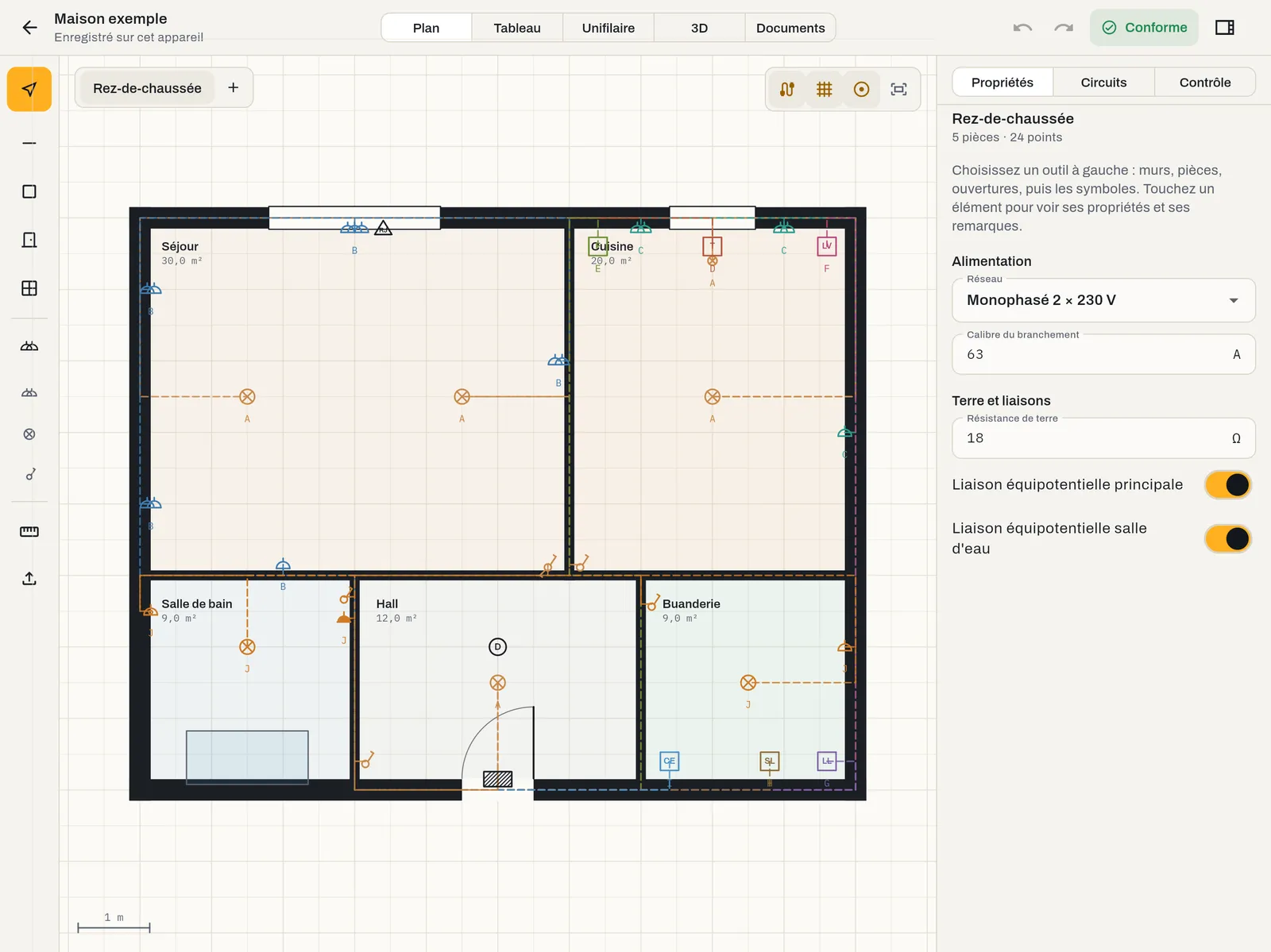 Light
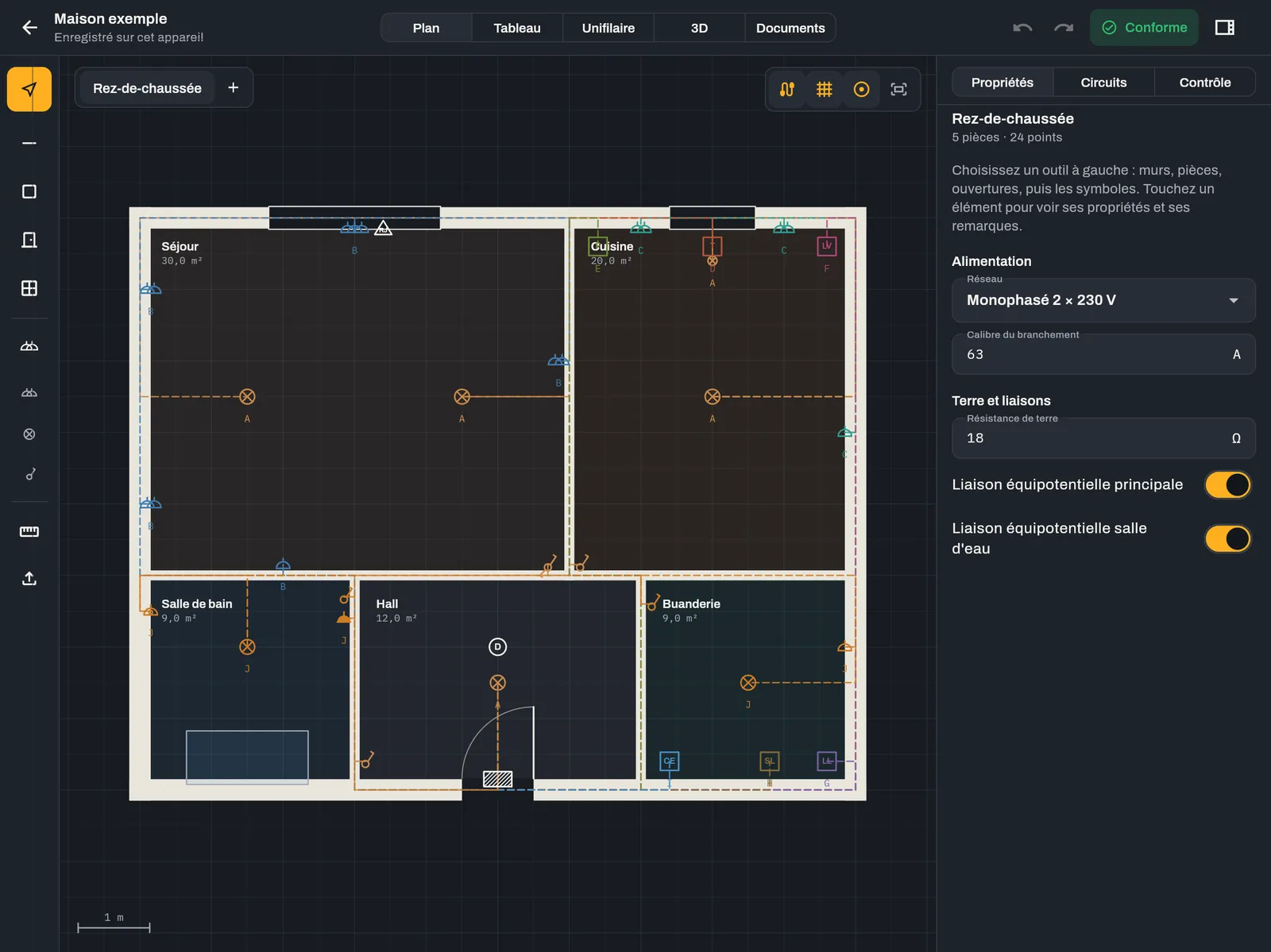 Dark
Language#
Ten languages: French, Dutch, English, German, Spanish, Italian, Portuguese, Polish, Romanian and Turkish. The change is immediate, with no restart, and covers the whole interface, including symbol names, check remarks and the documents generated afterwards. On first launch, Disjoncto uses the device language if it is one of the ten.
Plans#
The section shows the active plan (Free, Site Pass, Pro, Team, Packs or Lifetime) and opens the list of plans, purchase and restoring purchases. Details: Plans and licences.
Rules#
The embedded rule set is shown as “RGIE / AREI Book 1 · rule set RGIE-07 2026.11.2”. It is the one the check applies, offline. Rules are updated without a new version of the app; every remark refers to the RGIE article. Quote this version to support when discussing a remark.
About#
The About section gives the application version, the build token (useful to support), the platform and the rule set; links to disjoncto.com, this documentation, the privacy policy, the terms of use and support; what's new in recent versions (loaded when a connection is available, otherwise the last known notes); the notice “© 2026 Disjoncto. All rights reserved.” and “Author and publisher: Anthony Bellia”.
Where are these settings stored? On the device, with the projects. They are not synced between devices and are not sent to a server. See Privacy.